The whole point of automating something is to stop thinking about it. You set up the workflow, it works, you move on. But there's a quieter cost that shows up a few weeks later, once you actually depend on the thing. You've handed off work that matters, and now a low-grade worry runs in the background. Is it still working? Did last night's run finish? Did the one that touches payroll do the right thing at 2am while everyone was asleep?
Automation you can't see into doesn't remove that worry. It just relocates it. You trade the stress of doing the task for the stress of not knowing whether the task got done, which is arguably worse, because at least the first kind you can act on. So we've spent a lot of time on the part of Lodol that rarely makes it into a demo: what it's like to live with your automations once they're running and carrying weight.
One place that answers "is everything okay?"
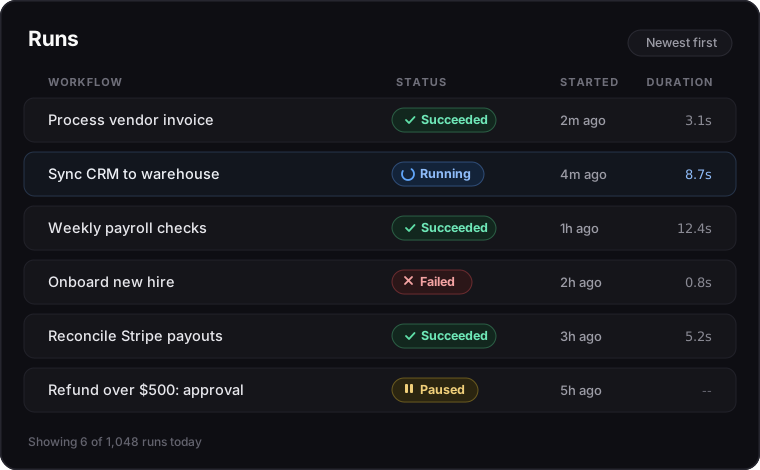
Every run of every workflow lands on the Runs page. Not in your inbox, not in a Slack channel, not in a vague sense that things are probably fine. One page, newest first, showing each run's workflow, its status, when it started and finished, and who ran it. Filter by status to see only the failures, or search for the workflow you're worried about.
Lodol uses the same status labels everywhere, so each one means exactly one thing: Queued, Running, Awaiting approval, Awaiting reply, Paused, Succeeded, Stopped or Failed, whether you're skimming the list or deep inside a single run. The question "is everything okay?" should take about three seconds to answer, and this is where you answer it.
Watch a run happen, step by step
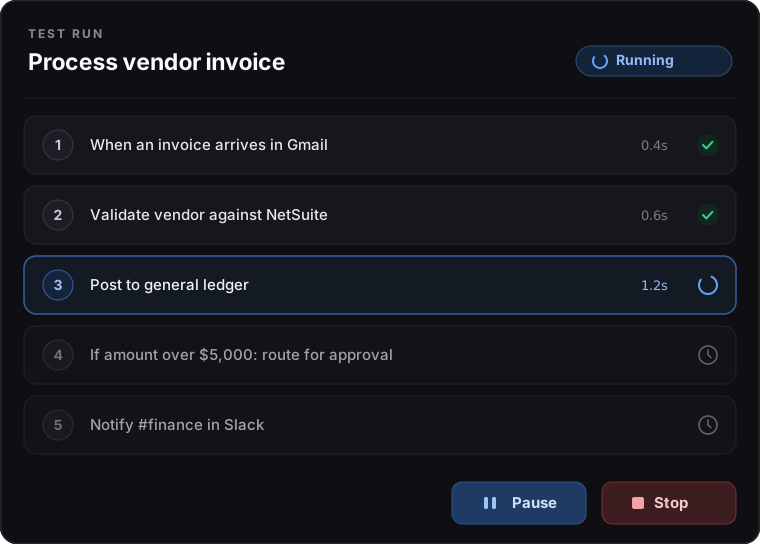
Open any run and you can follow it as it goes. Steps appear as they complete, each showing how long it took, and a step that's still working has a timer counting up beside it, so a slow run looks different from a stuck one at a glance. You see the path the run actually took: which branch it followed and what happened on each pass through a loop.
This matters most in the first few days after you build something, when you don't fully trust it yet. Watching a new workflow run against real data, and seeing exactly where it would have gone wrong if it were going to, is how it earns a place in your operation. Later, the same view is where you go to prove what happened. Each step's text shows the actual values it used, Show details shows what it was given, and its result is right there to read or copy. That turns "I think it did the right thing" into "here is the exact invoice number it used, at 2:04am, and here is what came back."
Monitoring you can actually act on
Watching a problem unfold without being able to touch it is its own kind of frustration, so the run page is not read-only. You can pause a run while you check something upstream, or before a step you can't take back, then resume it and it carries on from where it stopped rather than starting over. You can stop it outright if something looks wrong, before it does more than you want, and when several things are going wrong at once, Stop All Running on the Runs page halts every run in progress. When a run is waiting on a person, the answer box is right there on the page. And for a run you started by hand, once you've fixed whatever caused the trouble, Run again starts a fresh run on the latest version of the workflow.
These are small controls, and that is the point. "My automation is doing something I don't want" goes from a fire drill to a couple of clicks. You handed off the work. You didn't hand over the keys to it.
You'll know before your customer does
Automation rarely fails with a bang. It fails with silence. A workflow quietly stops mattering because it quietly stopped working, and nobody notices for a week.
So failures don't sit quietly. When a run fails, Lodol emails you straight away, with the subject line "Your workflow run failed", and puts a notice in the app. That email is on from the start; you don't have to remember to switch it on. Open the run and the step that stopped it is marked, with the error it hit, not a red dot to decode. Under Settings, Notifications, you choose which other events reach you in the app or by email, such as a run finishing or a teammate mentioning you.
If you build with Claude or ChatGPT connected to Lodol, you can hand the failed run straight to it. It reads the same run you do, works out what went wrong and fixes the workflow, and the fix goes into the workflow's version history, so you can see exactly what changed and undo it.
Even running out of runs doesn't happen in silence. The workspace owner gets an email when 80 percent of the month's runs are used, and if they do run out, each paused workflow says so on the Runs page instead of simply going quiet.
What happens if our servers restart mid-run
Servers restart, for updates and occasionally for worse reasons. A run in the middle of a twelve-step process shouldn't care. Lodol saves a run's place after every step it finishes, and if the server running it restarts, the run picks up after the last finished step instead of starting over. The work it already did, like a ledger entry it already posted, isn't done a second time.
Why we treat this as the product, not the reporting layer
It would be easy to file all of this under "reporting," the stuff you add once the real automation features are done. We think that gets it backwards. For a team running reconciliations or approvals or payroll on Lodol, being able to see and steer the work is not a nicety on top of the value. It is the value. An automation you can't observe is one you can never fully trust, and one you can't fully trust is one you'll quietly stop relying on for anything that counts.
So hand off the work. Just keep the two things worth keeping: a clear view of what's happening, and the ability to step in when it matters.
See what living with your automations feels like.
Start free and run your first workflow, or talk with our team and we'll walk you through the Runs page with a workflow like yours.